

  |
 |
 |
 |
 |
 |
 |
 |
 |
Shlv2mgr.exe v1.2.0.0 |
||||
Free Utility |
Command Line Utility for Shell Launcher V2Windows comes with the standard Explorer.exe shell with taskbar, start button, and desktop. Embedded/IoT OEMs looking to make their product look unlike Windows replace Explorer.exe with their own application. To make the shell replacement more manageable, the Shell Launcher features allow you to change the main shell form Explorer.exe to a custom shell executable of your choice. A simple enable / disable capability allows you to switch from custom shell to explorer shell. The feature also allows you to setup different shells for different users.Shell Launcher V2 was introduced to support UWP applications and work with Intune. For OEMs Shell Launcher V2 required Psexec.exe and XML file to configure Shell Launcher. Psexec.exe is a power full tool that gets blocked by most IT departments. The Shlv2mgr.exe utility only requires administrative privileges to setup and manage Shell Launcher. Shlv2mgr.exe can be called within a batch file to setup Shell Launcher V2. For example: when you create a customer installer with System Image Manager (SIM), the batch file can be called with a synchronous command. A default shell must be configured first before Shell Launcher can be enabled or setting up a customer user shell. To setup different shells for user accounts, the accounts must already exist. Note: Only supports desktop applications (.exe). UWP not supported. There has been limited testing. The utilities are provided as is without warranty. Feedback is welcome. Requires:
The utilities can be downloaded from here - ShellLauncherV2Utility.zip
|
|||
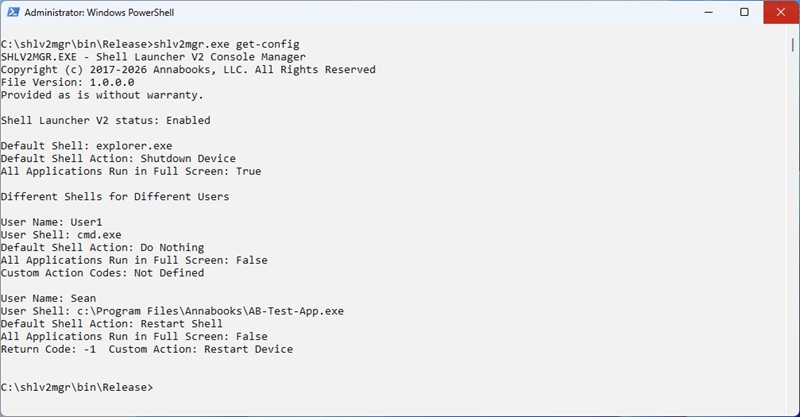
shlv2mgr.exe Command Line Utility
|
Usage: shlv2mgr
[command] [settings] Commands: enable | disable Enable or Disable Shell Launcher V2 get-config List the status and setings of Shell Launcher V2 set-defaultshell Sets the default shell set-usershell Setup a shell for a specific user set-customactioncode Sets a custom return code action. Muiltiple return codes are supported remove-customactioncode Removes custom return code action remove-usershell Remove a customer user shell Help | ? This help page Examples: shlv2mgr enable shlv2mgr set-defaultshell <path to .exe> <DefaultAction> <AllAppsFullScreen> where DefaultAcion - 0=Restart Shell, 1=Restart Device, 2=Shutdown Device, 3=Do Nothing where AllAppsFullScreen - True | False shlv2mgr set-usershell <user name> <path to .exe> <DefaultAction> <AllAppsFullScreen> where DefaultAcion - 0=Restart Shell, 1=Restart Device, 2=Shutdown Device, 3=Do Nothing where AllAppsFullScreen - True | False User account must exist shlv2mgr set-customactioncode <user name> <applicaton's return code> <DefaultAction> where applicaton's return code is any return code fomr the shell applicaton i.e. -1, 255, 0, etc. Multiple action codes are supported where DefaultAcion - 0=Restart Shell, 1=Restart Device, 2=Shutdown Device, 3=Do Nothing User account and custom shell must exist shlv2mgr remove-customactioncode <user name> <applicaton's return code> where applicaton's return code is any return code fomr the shell applicaton i.e. -1, 255, 0, etc. Multiple action codes are supported User account, custom shell, and custom action code must exist shlv2mgr remove-usershell <user name> User account must exist |
|||
Version Release information1.1.0.0 - Initial Release 1.2.0.0 - Fixed help and get-config error
|
||||
|
|
||||
| Please review our refund policy before buying. | ||||
  |